


Your business exists, but when someone searches for what you do in West Hartford or Manchester, you are not showing up. That is not a visibility problem — it is a setup problem, and it is fixable for free.
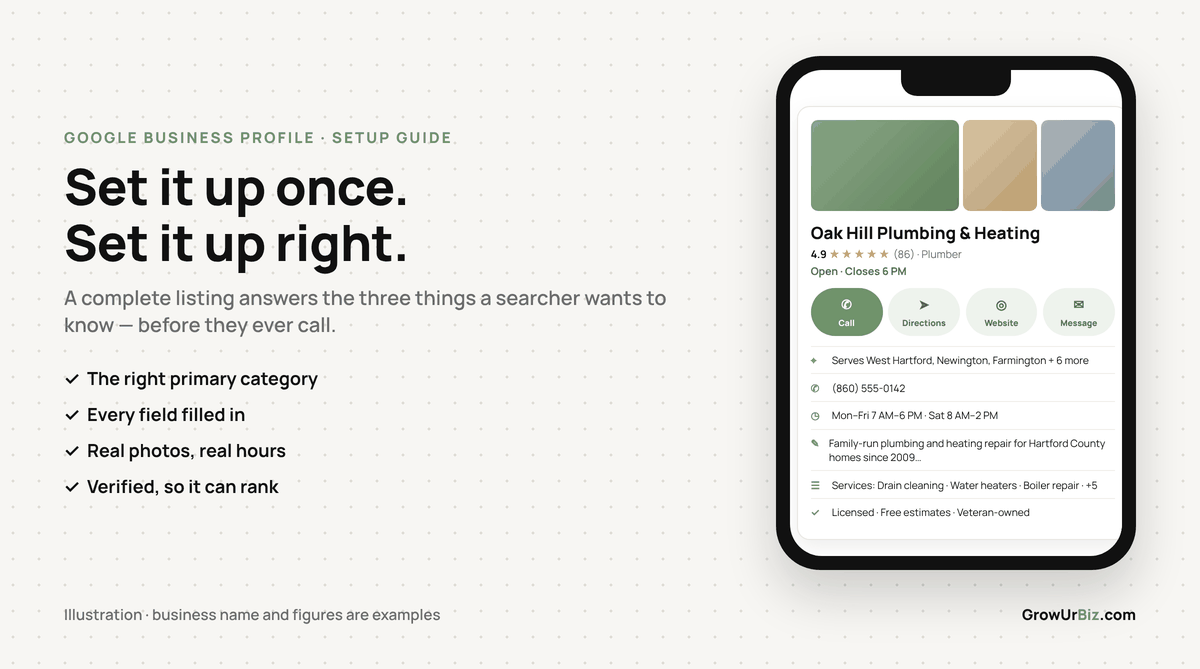
A Google Business Profile (GBP) is the listing that appears in Google Search and Google Maps when someone looks for a local business. Getting it live and filled out correctly is the single highest-return thing you can do for local visibility. This guide walks you through every step, every field, and every decision — nothing skipped, nothing hidden behind a form.
Before You Start: What You Actually Need
The three things Google requires
Google will ask you to confirm three things before your profile goes live:
- A business name that matches what is on your signage, invoices, or legal registration
- A business address or a service area (more on that distinction below)
- A phone number and website, if you have them
You do not need a website to create a profile. If you do not have one yet, leave that field blank for now. Do not let the absence of a website stop you from claiming your listing today.
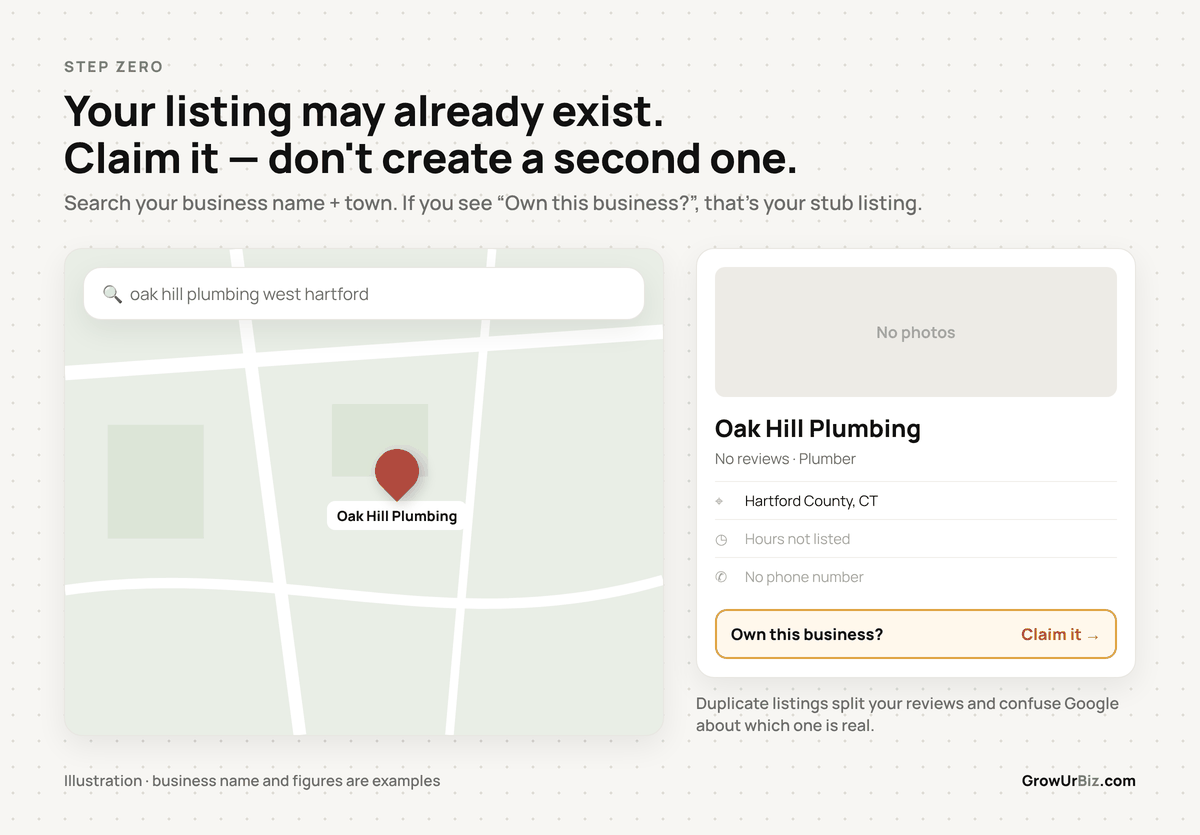
Check whether your listing already exists
Search Google for your business name plus your city. If a listing appears with a “Claim this business” or “Own this business?” link, someone — possibly Google’s automated system — has already created a stub profile for you. Claim it rather than creating a duplicate. Duplicate listings confuse Google and split your reviews.
Step One: Create or Claim Your Google Business Profile
How to get started
Go to business.google.com and sign in with a Google account you own and will keep. Use a business email if you have one — not a personal Gmail that a former employee might control. This matters: whoever owns that Google account controls the listing.
From there, Google walks you through a setup flow. You will enter your business name, and Google will show you any matching listings that already exist. If yours appears, select it and choose to claim it. If nothing matches, choose to add your business.
Choosing your business type
Google will ask whether customers visit your location, you visit customers, or both. This determines whether you show a physical address or a service area on your listing.
- Storefront: Customers come to you. A restaurant in Bristol, a salon in Glastonbury, a retail shop in Enfield. Show your address.
- Service area business: You go to customers. A plumber, a cleaning company, an electrician covering Hartford County. Hide your home address and set a service area instead.
- Hybrid: You have a shop but also do on-site work. You can show your address and set a service area.
Step Two: Pick the Right Category — This Is Not a Guess
Why your primary category matters more than anything else
Your primary category is the biggest single signal Google uses to decide which searches your listing appears in. Get it wrong and you will rank for the wrong things — or not rank at all. This is the field most setup guides gloss over. Do not pick a broad category because it sounds impressive. Pick the most specific one that accurately describes your main service.
Examples of what this looks like in practice:
- A general contractor who mainly does kitchen remodels: choose Kitchen Remodeler, not General Contractor
- A chiropractor in Newington: choose Chiropractor, not Alternative Medicine Practitioner
- A bakery in West Hartford that also does custom cakes: choose Bakery as primary, add Custom Cake Shop as a secondary category
How to find the right category
Start typing your main service into the category field and review what Google suggests. Pick the most specific match. Then add up to nine additional categories for secondary services — but only add categories for services you genuinely offer. Padding your categories with loosely related terms does not help and can hurt.
For a deeper look at choosing categories, see our guide to Google Business categories.
Step Three: Fill In Every Field — Not Just the Obvious Ones
The fields most businesses skip
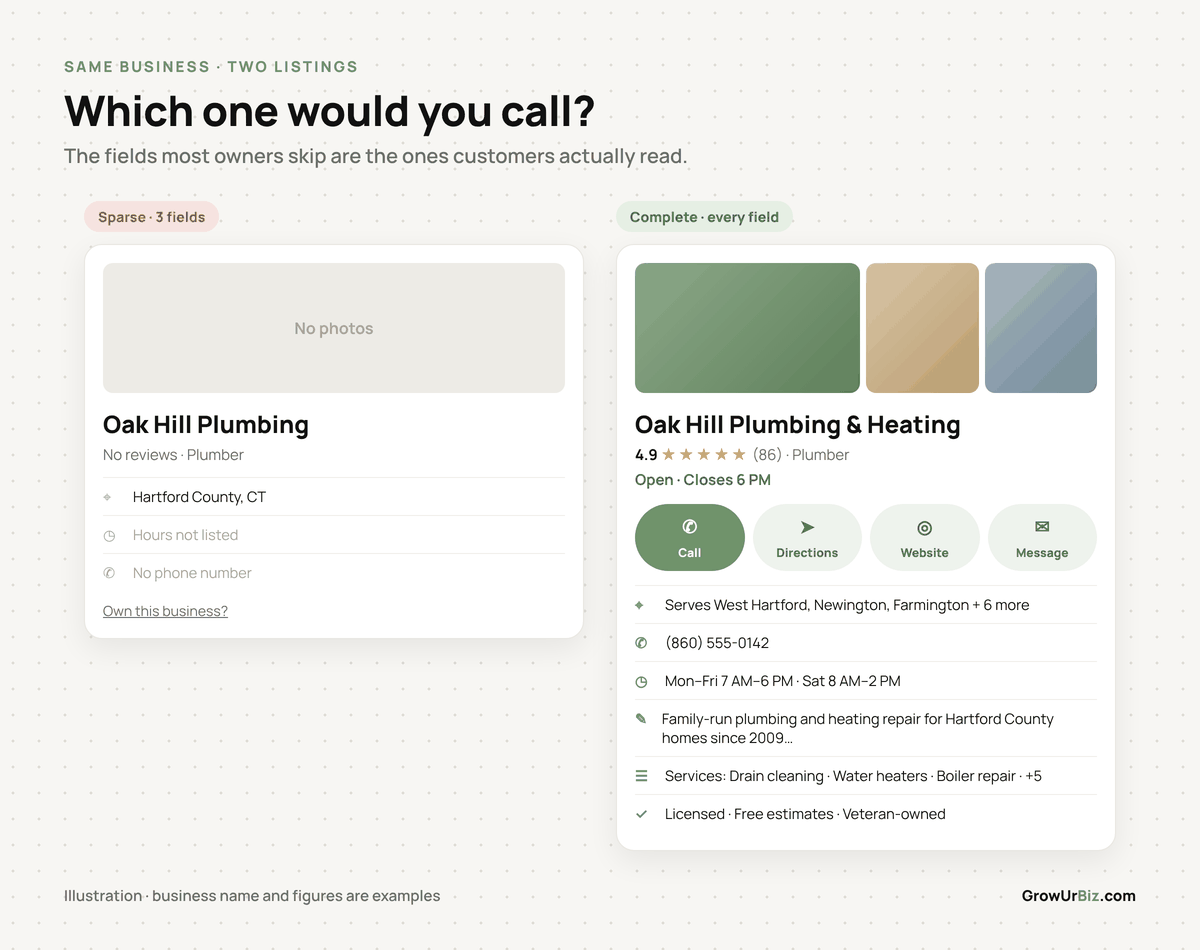
Name, address, phone, and website are obvious. These are the fields that separate a thin listing from a complete one:
- Business description: 750 characters. Write one or two sentences about what you do, who you serve, and where. Mention Hartford County or specific towns if you serve them. Do not keyword-stuff. Write for a person, not an algorithm.
- Hours: Set them accurately, including holiday hours when relevant. Listings with accurate hours get more calls because people trust them.
- Services or products: Add each service individually with a name and a short description. A roofing company in Manchester should list roof repair, roof replacement, gutter installation — not just “roofing.”
- Attributes: These vary by category but can include things like “women-owned,” “veteran-owned,” “wheelchair accessible,” or “free Wi-Fi.” Fill in every attribute that applies.
- Photos: Add at least five photos when you launch. Cover photo, logo, interior, exterior, and at least one photo of your work or team. Listings with photos get more direction requests and website clicks, according to Google’s own published data.
Step Four: Verify Your Listing
What verification looks like now
Google requires you to verify that you are the legitimate owner of the business before your listing goes fully live. The verification method offered to you depends on your business type and history. Common methods include a video recording of your business location, a phone call, a text message, or a postcard mailed to your business address.
Video verification has become more common. If prompted, Google will ask you to record a short video showing your business location, signage, and proof that you operate there. Do not skip this — an unverified listing has limited visibility and cannot respond to reviews.

If verification is taking longer than expected
Postcard verification can take up to two weeks. Video verification is usually reviewed within a few days. If you are stuck, you can contact Google Business Profile support through the Help section of your dashboard. Keep your original verification request open — do not cancel and restart, as that resets the clock.
Steal This: Your GBP Launch Checklist
Copy this list. Work through it before you consider your profile done. Every item here is either required for visibility or directly affects whether a potential customer calls you or clicks away.
The complete checklist
GOOGLE BUSINESS PROFILE LAUNCH CHECKLIST

BASICS
[ ] Business name matches your signage/legal registration exactly
[ ] Correct business type selected (storefront, service area, or hybrid)
[ ] Primary phone number entered and verified
[ ] Website URL entered (if you have one)
[ ] Business address or service area set correctly

CATEGORIES
[ ] Primary category is the most specific accurate match
[ ] Secondary categories added for all real services offered
[ ] No padding with loosely related categories

DESCRIPTION
[ ] Business description written (up to 750 characters)
[ ] Description mentions your main service and your area
[ ] No keyword stuffing — reads naturally

HOURS
[ ] Regular hours set for every day you are open
[ ] "Closed" marked for days you do not operate
[ ] Special hours added for upcoming holidays if relevant

SERVICES / PRODUCTS
[ ] Each individual service listed by name
[ ] Short description added to each service
[ ] Prices added where you are comfortable showing them

ATTRIBUTES
[ ] All applicable attributes selected (ownership, accessibility, amenities)

PHOTOS
[ ] Logo uploaded
[ ] Cover photo uploaded (a real photo of your business or work, not a stock image)
[ ] At least 3 photos of your work, space, or team uploaded
[ ] Photos are clear and well-lit — no blurry phone snapshots

VERIFICATION
[ ] Verification completed and profile status shows as verified
[ ] Profile is visible when you search your business name on Google

ONGOING (set a reminder for 30 days from now)
[ ] Respond to any reviews that have come in
[ ] Post one update or offer
[ ] Check that hours are still accurate
Free Local Marketing Checkup
We will look at your Google Business Profile, your local search visibility, and your nearest competitors — and tell you exactly what to fix first. Takes about 20 minutes. Book it here. Honest feedback, zero pressure.
One Thing You Should Not Pay For Right Now
Do not buy a GBP optimisation service before your profile is verified and complete
If you search for help with your Google listing, you will find no shortage of agencies and freelancers offering “GBP optimisation packages” starting around $150 to $300 per month. Some are legitimate. Many are not. But here is the thing: none of them can do anything useful for you until your profile is verified and fully filled out — and you can do that yourself for free, today, using the checklist above.
The work those services perform in month one is almost always the same setup work this article describes. You are paying for something you can do in two to three hours on your own. Once your profile is live, verified, and complete, and once you have started collecting reviews, that is the point where ongoing management or citation building might be worth paying for. Not before.
If someone is asking you to pay for GBP setup before you have even claimed your listing, walk away. Call us at (860) 730-1636 and we will tell you honestly whether you need help or whether you are better off doing it yourself.
Storefront vs. Service Area: A Quick Comparison
This is one of the most common setup mistakes. Choosing the wrong type affects what shows on your listing and which searches you appear in.
| Factor | Storefront (Address Shown) | Service Area Business (Address Hidden) |
|---|---|---|
| Best for | Restaurants, retail shops, salons, clinics — anywhere customers come to you | Plumbers, electricians, cleaners, landscapers — you travel to the customer |
| What shows on the listing | Your street address, visible on Maps | Your service area (e.g., “Serving Hartford County”), no street address |
| Ranking geography | Strongest near your physical location | Spread across your defined service area towns |
| Risk if you get it wrong | Customers show up at a home address you did not want public | You lose proximity ranking signals you could have had |
| Can you change it later? | Yes, but changes may trigger re-verification | Yes, but changes may trigger re-verification |
If you run a service area business out of your home — which is common for contractors across Glastonbury, Enfield, and Bristol — choose service area and do not enter your home address. Google allows this specifically to protect home-based businesses.
Frequently Asked Questions
How long does it take to set up a Google Business Profile?
The setup itself takes 30 to 60 minutes if you have your information ready. Verification adds time — video verification is usually reviewed within a few days, while postcard verification can take up to two weeks. Plan for up to two weeks before your listing is fully live and visible.
Do I need a website to create a Google Business Profile?
No. A website is helpful but not required. You can create and verify a complete profile with just a business name, location or service area, and phone number. Add your website URL later when you have one.
Can I have more than one Google Business Profile for the same business?
Only if you have genuinely separate locations with different addresses. One business operating from one location should have one profile. Duplicate listings for the same location violate Google’s guidelines and can result in both listings being suspended.
What happens if I pick the wrong primary category?
You can change your primary category at any time through your profile dashboard. Changes take effect quickly, usually within a day or two. If your rankings shift after a category change, give it two to four weeks before drawing conclusions.
How many photos should I add to my Google Business Profile?
Start with at least five: a logo, a cover photo, an exterior shot, an interior or job-site shot, and at least one photo of your work or team. Add more over time. There is no maximum. Businesses with more photos generally see more engagement, though Google has not published a specific threshold.
My profile says “verified” but I am not showing up in searches. What is wrong?
Verification means Google confirmed you own the business — it does not guarantee ranking. Visibility depends on your category, the completeness of your profile, your proximity to the searcher, and your reviews. A profile verified yesterday with no reviews and a thin description will not outrank an established competitor. Fill out every field, add photos, and start asking satisfied customers for reviews. Visibility builds over weeks, not days.
Your Next Step
Go to business.google.com right now and search for your business name. If a listing exists, claim it. If it does not, create one. Then work through the checklist in this article before you do anything else.
Once your profile is live and verified, the next priority is getting your first reviews and making sure your business information is consistent across the web. Our Google Business categories guide is a good place to go deeper on category strategy once your basics are in place.
If you want a second set of eyes on what you have built — or if you are not sure whether your current listing has any gaps — the Free Local Marketing Checkup at growurbiz.com/contact is the fastest way to find out.